
Qwen Image Generation and Editing API Integration Guide
The Qwen Image Generation and Editing API supports generating images from text descriptions, and also supports editing based on 1–3 reference images. Through the same interface, you can create product images, posters, illustrations, and other images, and choose to wait synchronously for results or query results asynchronously.
This article introduces the complete process from obtaining an API Token, submitting the first image, to receiving asynchronous results. The interface address is POST https://api.acedata.cloud/qwen-image/images.
¶ Apply and Use
- Open the jiasmart Console. If you are not yet logged in or registered, you will return to the console after completing login.
- Create or select an application to obtain an API Token. Users who already have a platform API Token can use it directly and do not need to apply separately for Qwen Image; please confirm that the credential has permission to call the corresponding interface.
- Confirm that the account has available credits. When credits are insufficient, you can recharge general balance on the Balance page.
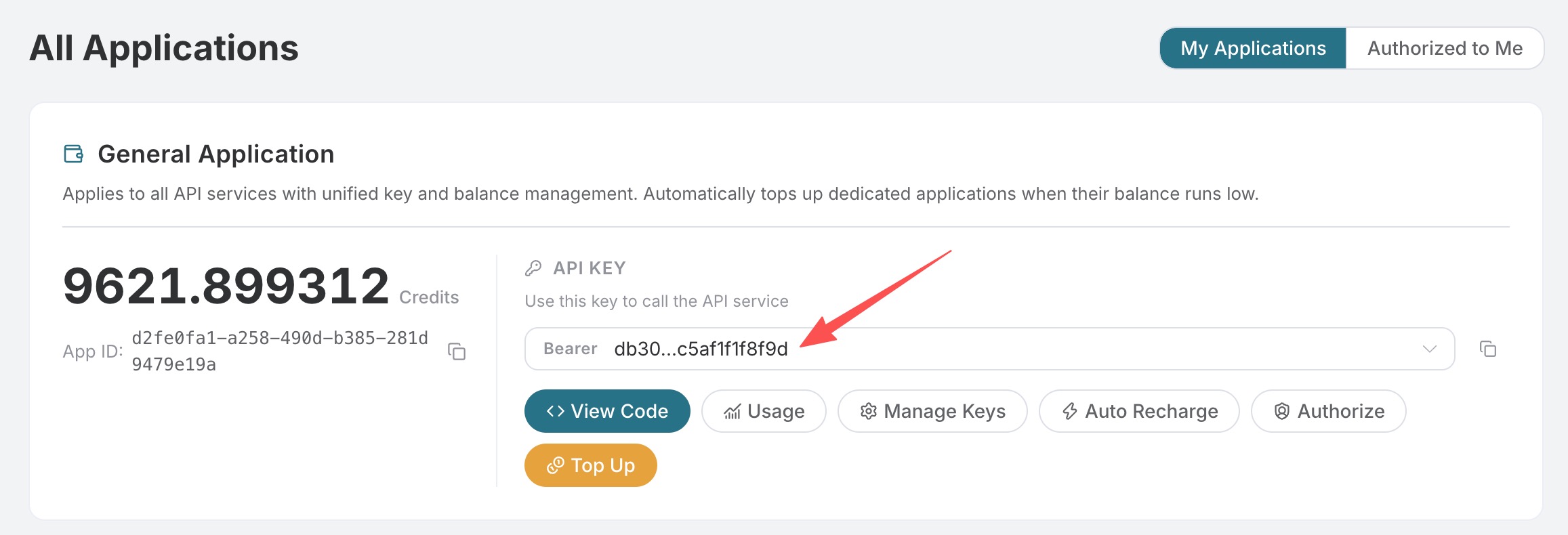
YOUR_API_TOKEN in the following text needs to be replaced with your own API Token. Please store the Token on the server side, and do not place it in web frontend code or public repositories.
Complete parameters and online debugging: Qwen Image Generation and Editing API.
¶ Select a Model
| Model | Suitable Scenarios |
|---|---|
qwen-image-3.0 |
Daily image generation, batch creation, and rapid iteration |
qwen-image-3.0-pro |
Scenarios with higher requirements for details, text layout, and quality |
Both models use the interface in this guide. Invocation costs are related to the model, number of reference images, actual number of output images, and output specifications. For current prices, please see the Qwen Image Pricing Page.
¶ Request Headers and Request Parameters
All requests use a JSON request body and include the following request headers:
| Request Header | Value | Description |
|---|---|---|
Authorization |
Bearer YOUR_API_TOKEN |
Use the API Token obtained from the console; retain the space after Bearer |
Content-Type |
application/json |
The request body uses JSON format |
Accept |
application/json |
Receive responses in JSON format |
Common request parameters are as follows. For the complete definition, refer to the API documentation.
| Parameter | Type | Required | Description |
|---|---|---|---|
model |
string | Yes | qwen-image-3.0 or qwen-image-3.0-pro |
prompt |
string | Yes | Describes the image to generate or editing requirements; cannot be empty, maximum 18,000 characters |
image_urls |
string[] | No | Pass 1–3 publicly accessible reference image URLs when editing; do not pass this field for text-to-image |
n |
integer | No | Number of images to generate, ranging from 1–6, default 1 |
size |
string | No | Output size, in width*height format, for example 1024*1024; use an asterisk * as separator |
prompt_extend |
boolean | No | Whether to expand the prompt, default true |
prompt_extend_mode |
string | No | direct or agent, default direct; agent is only for text-to-image |
enable_thinking |
boolean | No | Whether to enable enhanced reasoning, default true |
negative_prompt |
string | No | Describes content that should not appear in the image |
seed |
integer | No | Random seed, ranging from 0–2147483647 |
watermark |
boolean | No | Whether to add a watermark, default false |
async |
boolean | No | When set to true, returns task_id first, default false |
callback_url |
string | No | HTTP(S) address for receiving asynchronous completion notifications; requests are executed asynchronously after being passed |
The pixel area of the size must be between 512 × 512 and 2048 × 2048, and the aspect ratio must be between 1:8 and 8:1. For example, 1024*1024 represents a square image, and 1536*1024 represents a landscape image.
¶ Generate Images Synchronously
For the first call, it is recommended to use synchronous mode: do not pass image_urls, fill in the model and prompt, and you can perform text-to-image generation. The interface waits until generation is complete and returns the image address.
¶ cURL
curl -X POST 'https://api.acedata.cloud/qwen-image/images' \
  -H 'Authorization: Bearer YOUR_API_TOKEN' \
  -H 'Content-Type: application/json' \
  -H 'Accept: application/json' \
  -d '{
    "model": "qwen-image-3.0",
    "prompt": "A simple red circle centered on a clean white background.",
    "size": "1024*1024",
    "n": 1,
    "watermark": false
  }'
¶ Python
First run pip install requests to install dependencies, and set ACEDATACLOUD_API_TOKEN in the runtime environment to the Token obtained from the console.
import os

import requests

response = requests.post(
    "https://api.acedata.cloud/qwen-image/images",
    headers={
        "Authorization": f"Bearer {os.environ['ACEDATACLOUD_API_TOKEN']}",
        "Content-Type": "application/json",
        "Accept": "application/json",
    },
    json={
        "model": "qwen-image-3.0",
        "prompt": "A simple red circle centered on a clean white background.",
        "size": "1024*1024",
        "n": 1,
        "watermark": False,
    },
    timeout=300,
)
response.raise_for_status()
result = response.json()
if not result.get("success"):
    raise RuntimeError(result)
for image in result["data"]:
    print(image["image_url"])
¶ Response Example
The following is an excerpt of the main fields of a successful response. The example cost does not represent the current price:
{
  "success": true,
  "task_id": "565a7f55-72c6-43ed-b274-268ff046e5b4",
  "trace_id": "bb923cec-1550-43b4-8df2-288ac0977b4b",
  "data": [
    {
      "image_url": "https://cdn.acedata.cloud/assets/examples/qwen-image/40d5c76b-2f84-4b04-9ea0-b706417ae622-bac6a9e9de22.png"
    }
  ],
  "usage": {
    "input_image_count": 0,
    "output_image_count": 1,
    "output_width": 1024,
    "output_height": 1024
  },
  "cost": {
    "amount": 0.322,
    "currency": "credit",
    "list_amount": 0.35
  }
}
| Field | Description |
|---|---|
success |
Whether this generation was successful |
task_id |
Task ID, which can be used for subsequent queries; please save the value returned by your own request |
trace_id |
Request tracing ID, provide it to technical support when troubleshooting issues |
data |
List of generated images; view or download images through each item's image_url |
usage.input_image_count |
Actual number of input reference images; usually 0 for text-to-image |
usage.output_image_count |
Actual number of output images |
usage.output_width / usage.output_height |
Width and height of the output image, in pixels |
cost.amount |
Actual cost after applying discounts |
cost.list_amount |
List price cost before applying discounts |
cost.currency |
Cost unit; credit indicates Credits |
The values in cost are measured in Credits. When conversion to USD is needed, the price and quota of the current plan should be used: USD amount = Credits × (plan price / plan quota).
¶ Editing Based on Reference Images
Add image_urls to the generation request to switch to reference image editing. The following uses a public example image, requiring the subject to be retained and the background to be modified:
curl -X POST 'https://api.acedata.cloud/qwen-image/images' \
  -H 'Authorization: Bearer YOUR_API_TOKEN' \
  -H 'Content-Type: application/json' \
  -H 'Accept: application/json' \
  -d '{
    "model": "qwen-image-3.0-pro",
    "prompt": "Retain the red circular subject in the reference image, and change the white background to a warm-toned movie poster style.",
    "image_urls": [
      "https://cdn.acedata.cloud/assets/examples/qwen-image/40d5c76b-2f84-4b04-9ea0-b706417ae622-bac6a9e9de22.png"
    ],
    "size": "2048*2048",
    "n": 1,
    "watermark": false
  }'
Reference images must be publicly accessible through URLs; local file paths or addresses that require login cannot be used. When passing multiple reference images, you can specify the purpose of each image in the prompt, for example, “retain the subject of the first image and use the color scheme of the second image.” Editing mode does not support prompt_extend_mode: "agent"; please omit this parameter or use direct.
The response structure for successful editing is the same as synchronous text-to-image generation; obtain the result from data[].image_url. Reference images are counted according to the actual input quantity, and charges are subject to the current pricing page and the usage and cost returned for this request.
¶ Asynchronous Generation and Task Querying
If you do not want to keep the connection open while waiting for generation to complete, you can set async: true. The API first returns a task_id, and the final image needs to be obtained through the task query API.
curl -X POST 'https://api.acedata.cloud/qwen-image/images' \
  -H 'Authorization: Bearer YOUR_API_TOKEN' \
  -H 'Content-Type: application/json' \
  -H 'Accept: application/json' \
  -d '{
    "model": "qwen-image-3.0",
    "prompt": "A simple red circle centered on a clean white background.",
    "size": "1024*1024",
    "n": 1,
    "async": true
  }'
Save the task_id in the response and use it as the id of the query request. Replace YOUR_TASK_ID below with your own task ID:
curl -X POST 'https://api.acedata.cloud/qwen-image/tasks' \
  -H 'Authorization: Bearer YOUR_API_TOKEN' \
  -H 'Content-Type: application/json' \
  -H 'Accept: application/json' \
  -d '{"action": "retrieve", "id": "YOUR_TASK_ID"}'
The query returns a task record, and the generation result is located in response. After the task is completed, check response.success; when successful, read response.data[].image_url; when failed, read response.error. It is recommended to query once every 5 seconds and set a total waiting time limit.
For complete task fields, Python polling code, and batch query examples, please refer to the Qwen Image Task Query API Integration Guide. Generation is billed based on actual results, and task queries do not incur additional API consumption.
¶ Receiving Completion Callbacks
If you want to proactively receive notifications after a task is completed, you can add your own callback_url to the generation request. For example, the request body can be written as:
{
  "model": "qwen-image-3.0",
  "prompt": "A simple red circle centered on a clean white background.",
  "size": "1024*1024",
  "n": 1,
  "async": true,
  "callback_url": "https://your-domain.example/webhooks/qwen-image"
}
Replace the example address with your own accessible HTTP(S) service. After passing callback_url, the request is executed asynchronously; even if async: true is not explicitly set, it will first return a task ID.
After the task is completed, the platform sends a POST request to that address. The JSON request body contains the final generation result and has the same result structure as a synchronous call, including fields such as success and task_id; it contains image results upon success and error information upon failure. The callback receiver should promptly return a 2xx status code and handle idempotency based on task_id. If no notification is received, you can query the result using the saved task ID without submitting the generation request again.
¶ Error Handling and Frequently Asked Questions
| Situation | Handling Method |
|---|---|
400 bad_request or parameter validation failure |
Check model, non-empty prompt, n, size format, and the number of reference images; agent mode cannot be used when editing |
401 invalid_token / token_expired |
Check whether the Token is correct, whether it has expired, and whether the request header includes the Bearer prefix |
403 |
Check invocation permissions, available quota, or content requirements according to the error message; submit again after modification |
429 too_many_requests |
Reduce concurrency and retry with a delay |
500 api_error |
Save the trace_id and error message; query the original task first if a task ID already exists |
| Synchronous connection timeout | A timeout does not necessarily mean the task failed; if a task ID has been obtained, query the task first to avoid duplicate submissions |
When processing responses, both the HTTP status code and error information in JSON should be checked. An asynchronous request returning a task ID only indicates that it has been accepted; whether it ultimately succeeds is subject to the success in the query or callback.
The same Token and the same API can be used for both image generation and editing. Set n when batch output is needed; when batch-querying multiple generation tasks, use the retrieve_batch operation of the Task Query API.